

Showing posts with label Type. Show all posts
Showing posts with label Type. Show all posts
Thursday, 17 March 2011


Wednesday, 26 January 2011


Thursday, 20 January 2011
Testing 'cult' type 1
different speed
this one is a little bit faster
Into for title 1 from Praefa Uennatornwaranggoon on Vimeo.
Intro for title 1 : speed 1 from Praefa Uennatornwaranggoon on Vimeo.
this one is a little bit faster
Cult Definition: Type choice


How the type is going to appear?
- typed using source text? ( but that might not be appropriate for the hand written type?)
- written? would that be possible to do using mask? that might actually take way too long. making it look like someone is actually writing it out. It will probably take too long to make for it to be worth it ? it will also take too long to appear and take too much of the 50 seconds
- appears like an ink bleed? like invisible ink appearing from the paper?
Wednesday, 19 January 2011
Type?

I don't know whether...
to go with these stylized typefaces or the classic roman serif ones
The animation is mostly image driven.So I think I will try and get a few screen shots and animation done and see how type would fit in with the imagery rather than the other way round
I don't even know if I want there to be any type at all during the animation.
I know there will be some either at the beginning and the end or just at the beginning or just at the end.
I know in the crit we discussed using the definition of what a cult is...so may be that could go at the beginning of the animation
and then at the end, the title of the show?
Wednesday, 15 December 2010
After Effects Induction 3 : TEXT
Creating text on After Effects
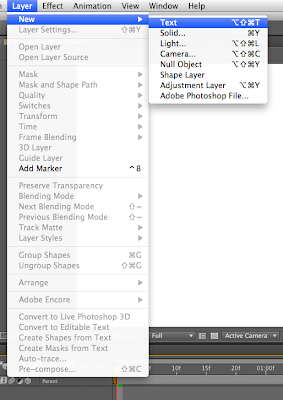

Character and Paragraph Tool Box
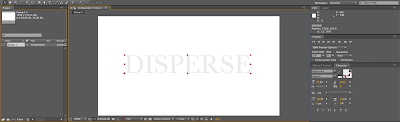

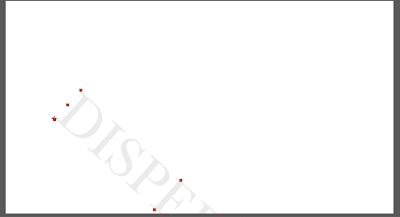
When creating text on Ae, Anchor Point is positions in bottom left hand corner
eg. if you apply transformation eg. rotation/ scale. It'll transform around that anchor point
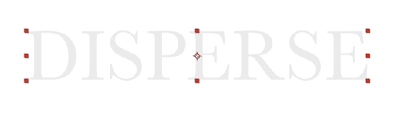
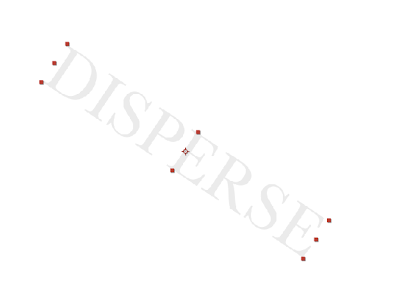
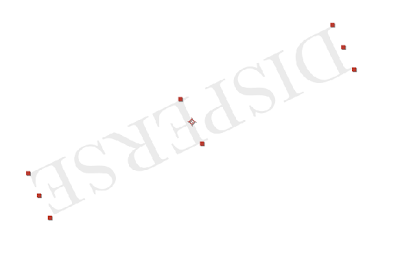
when changing anchor point; the position of the text is actually the one to move rather than the anchor point ( this is not a very effective way of changing your anchor point)
The more effective way is to use the 'Pan Behind Tool'...then you can move the anchor point

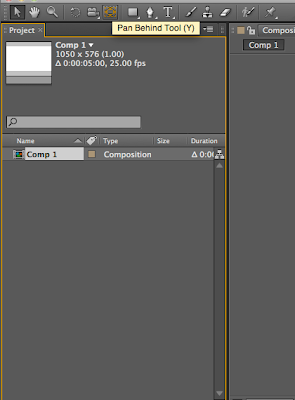
The advantage of creating text in Ae rather than in Ai or Psd is that the text is editable and its in vector form.
NB. If your work is an Ai file, can click the square button with lines coming out at all directions in order to ' continuously rasterize vector\
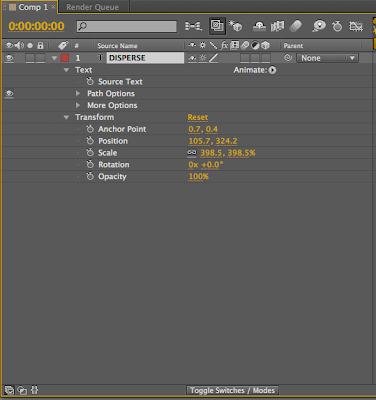
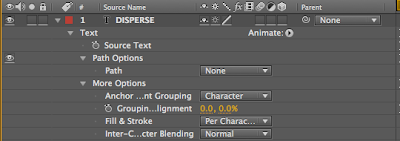
'Source text'
This is a text property. No perimeter( numbers, units etc), No indicated Value
by any characters attribute can be animated > change anytime by using key frames

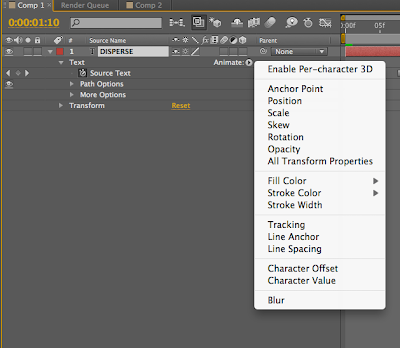
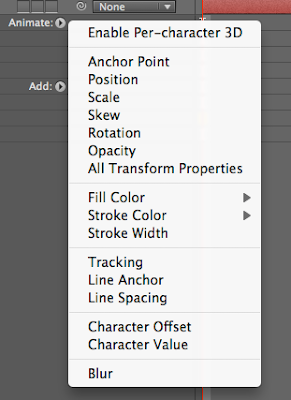

The animator tool works really well as you don't need to use key frames
but use the 'range selector' tool instead
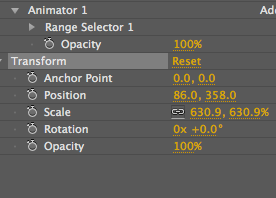
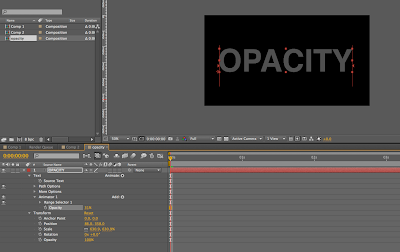
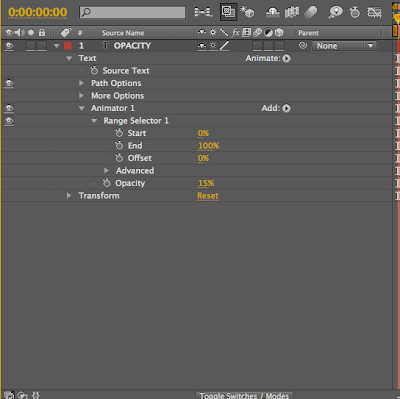
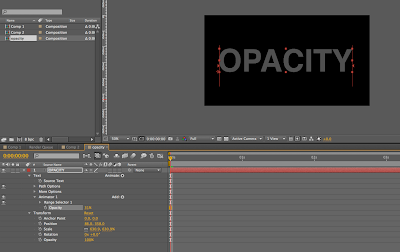
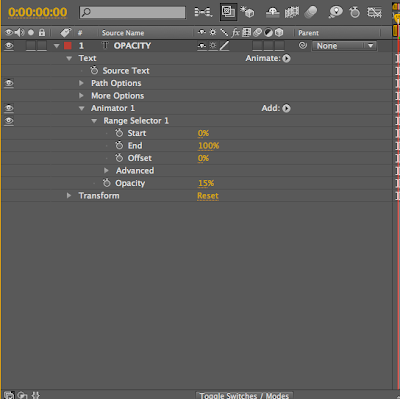
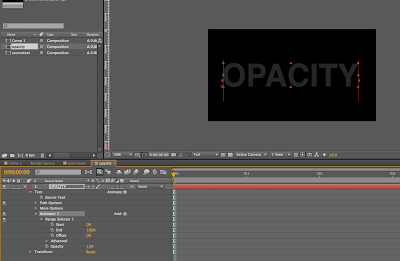
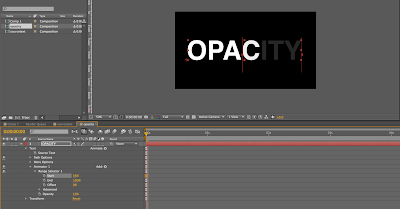
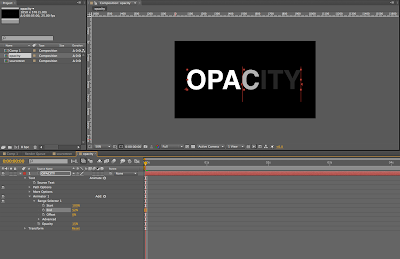
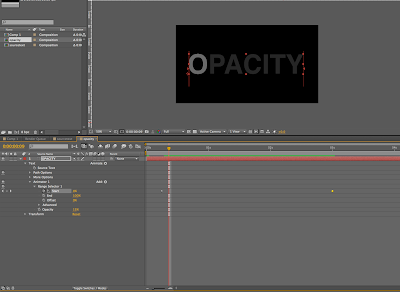
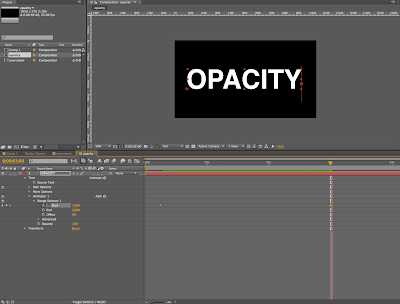
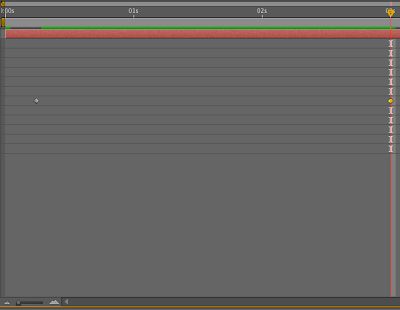
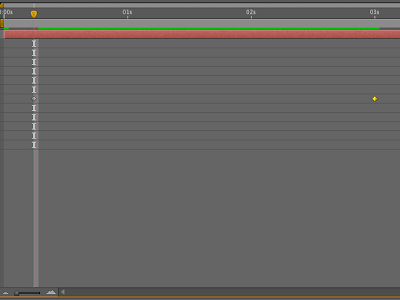
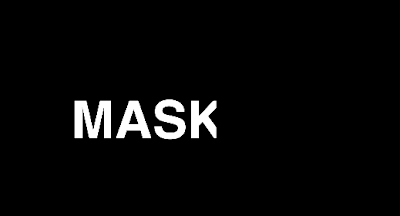
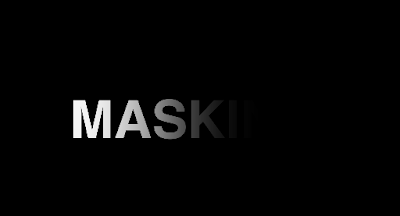
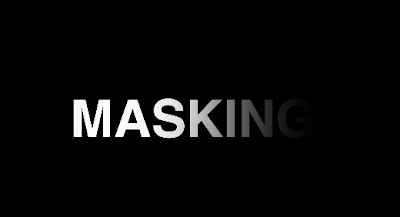
This is not shown in the images but the two vertical line down the sides of the text is the 'range' ..starting from the start of the word to the end.
This is how this work....
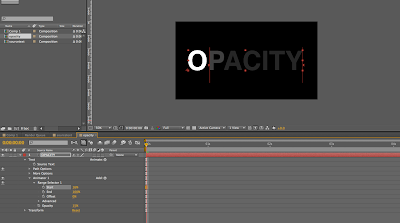
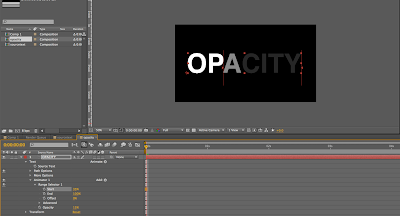
eg. The' start' button and the 'end' button... the end can have the value of 23% opcaity .
then key frame the end for a full opacity
and you get this...

Scaling
each character has their own anchor points
change the scale.....

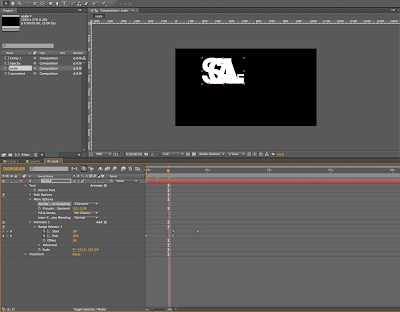
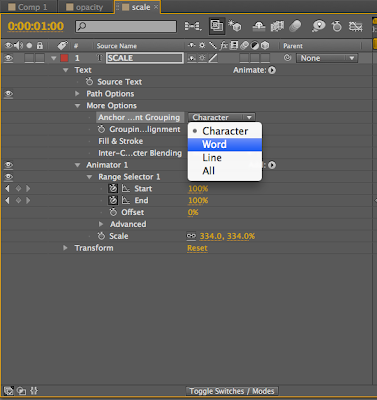
then you can choose if you want to animate the whole word together, or separate characters etc.


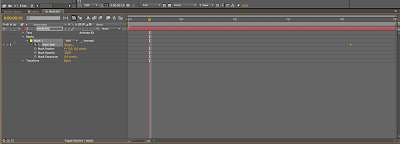
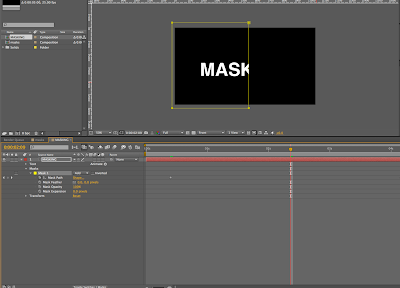
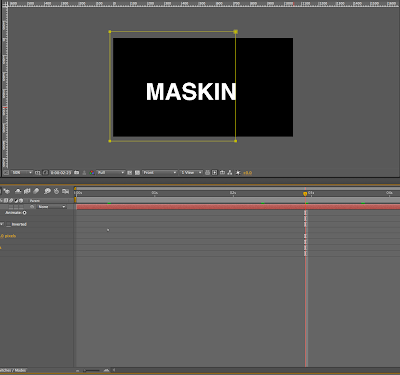
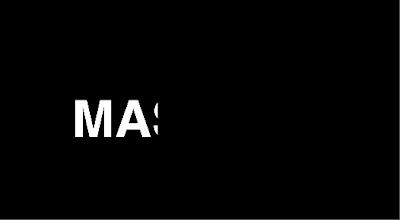
MASKS
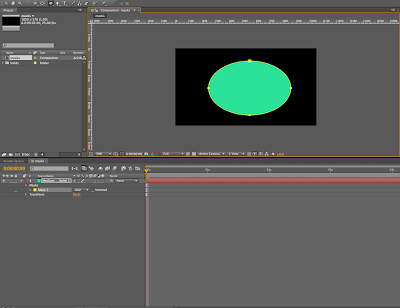
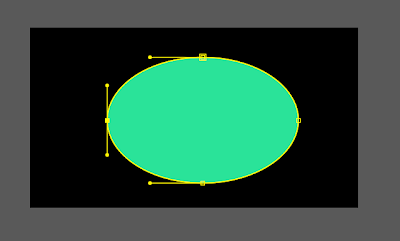
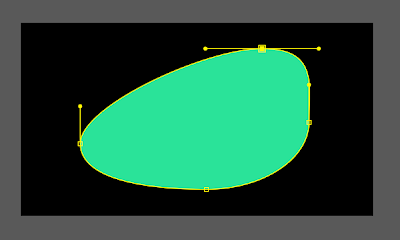 eg. creating an Elispe> you can change the anchor points just like a vector shape in Ai.
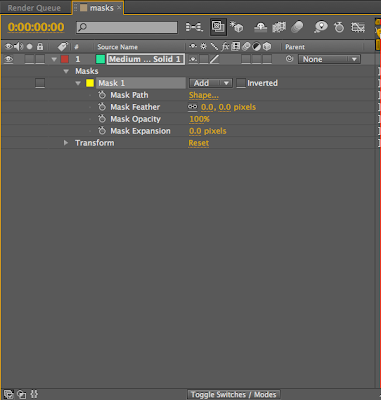
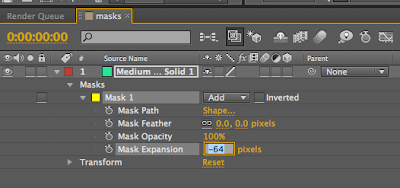
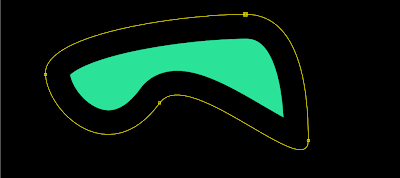
Mask Expansion
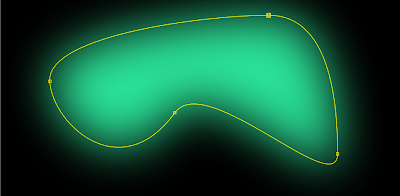
Mask Feather
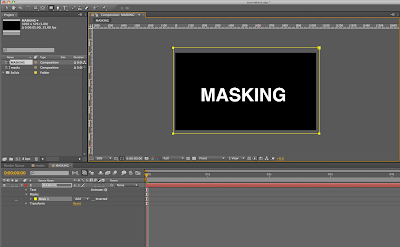

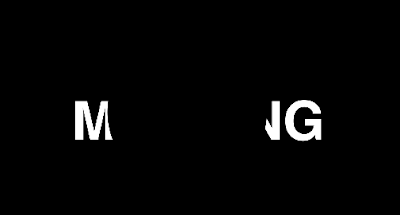
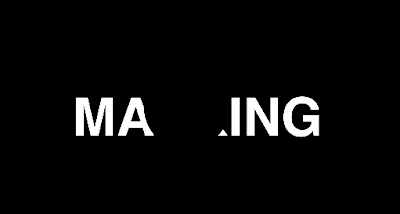
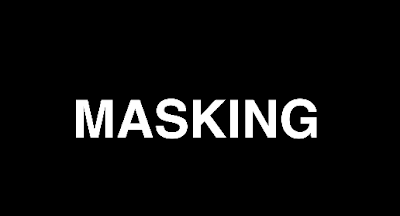 NB.
NB.
in AI.
Create shape/text (turn to outline)>copy> paste in after Effects> will be pasted as mask
eg. A letter as mask.....but add to layer as allows you to work with the character and manipulate anchor points and paths ( can't do this any other way 0
If word...select ALL masks/ click them down, enable key frame for (mask path)
so you can actually manipulate the shape of the letter
another possibility for masks is........
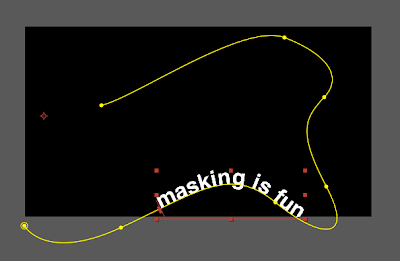
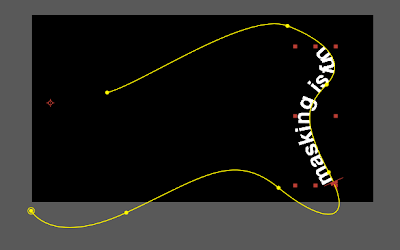
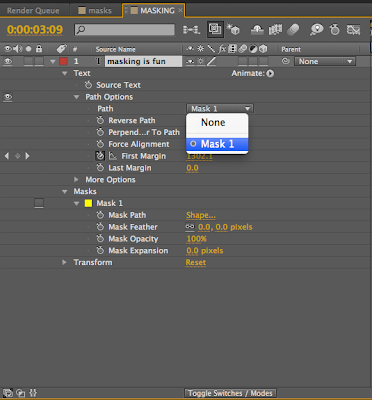
If you have some texts created within Ae> 'PATH OPTIONS' under text layer
add mask under text layer but NOT a closed mask shape
eg. a line created by the pen tool
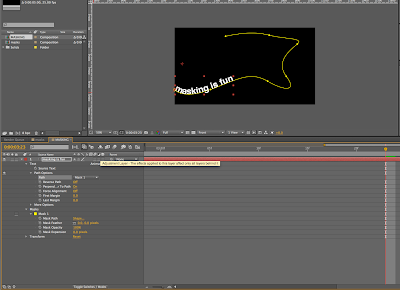
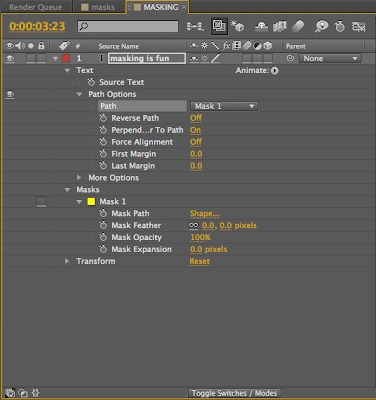
Can do a similar thing to type on shape path in AI
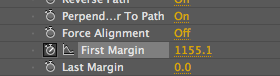
Path options> Path masks> attaches text to path more options
eg. First Margin, Last Margin
can use this to position text anywhere on path then if add key frames...can animate it
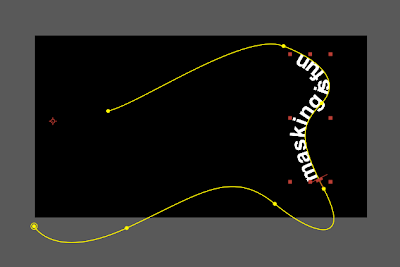
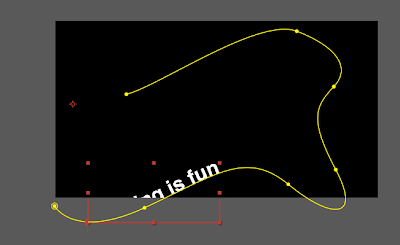


Character and Paragraph Tool Box


When creating text on Ae, Anchor Point is positions in bottom left hand corner
eg. if you apply transformation eg. rotation/ scale. It'll transform around that anchor point


when changing anchor point; the position of the text is actually the one to move rather than the anchor point ( this is not a very effective way of changing your anchor point)
The more effective way is to use the 'Pan Behind Tool'...then you can move the anchor point


The advantage of creating text in Ae rather than in Ai or Psd is that the text is editable and its in vector form.
NB. If your work is an Ai file, can click the square button with lines coming out at all directions in order to ' continuously rasterize vector\


'Source text'
This is a text property. No perimeter( numbers, units etc), No indicated Value
by any characters attribute can be animated > change anytime by using key frames


ANIMATOR
eg. Opacity,
then there are 2 opacity properties ( the layer and the text)
can do lots/ complicated things with only a few key frames.
eg. Opacity,
then there are 2 opacity properties ( the layer and the text)
can do lots/ complicated things with only a few key frames.


The animator tool works really well as you don't need to use key frames
but use the 'range selector' tool instead


This is not shown in the images but the two vertical line down the sides of the text is the 'range' ..starting from the start of the word to the end.
This is how this work....
eg. The' start' button and the 'end' button... the end can have the value of 23% opcaity .
then key frame the end for a full opacity
and you get this...


Scaling
each character has their own anchor points
change the scale.....


then you can choose if you want to animate the whole word together, or separate characters etc.


MASKS
- if create 'shape' on top of the selected solid a layer....this creates a masks


 eg. creating an Elispe> you can change the anchor points just like a vector shape in Ai.
- Each layer can have more than one mask
- Can animate properties under mask using key frames


Mask Expansion

Mask Feather

- 'Mask Path' property, key frame 'mask path' > change anchor points> can change the shape of the mask
- Masks can be applied to any layer eg. text, video, image
 Add mask to text layer. At finish ( the end of the comp) >enable Key Frame on mask path


 NB.
NB.in AI.
Create shape/text (turn to outline)>copy> paste in after Effects> will be pasted as mask
eg. A letter as mask.....but add to layer as allows you to work with the character and manipulate anchor points and paths ( can't do this any other way 0
If word...select ALL masks/ click them down, enable key frame for (mask path)
so you can actually manipulate the shape of the letter
another possibility for masks is........
If you have some texts created within Ae> 'PATH OPTIONS' under text layer
add mask under text layer but NOT a closed mask shape
eg. a line created by the pen tool


Can do a similar thing to type on shape path in AI
Path options> Path masks> attaches text to path more options
eg. First Margin, Last Margin
can use this to position text anywhere on path then if add key frames...can animate it


Subscribe to:
Posts (Atom)